AI models can be a great asset to more productive workflows if they’re well implemented. Which is why your email should also include efficient AI-powered tools. If Claude, Anthropic’s model, is part of your toolbox, you need a reliable way to connect Claude to Gmail.
In this article, we’ll look into the three main methods and see the pros of each, so that you can make an informed decision for your software connections.
Why should users connect Claude to Gmail?
There are many benefits when you connect Claude to Gmail. Since your inbox is a fundamental part of your team’s work, having access gives it more power and customization. For instance:
- If you ask Claude about a project, it can use data from your inbox as a way to offer more reliable responses
- When you need a follow-up, such as asking Who else was part of the project launch? or What did the client briefing include?, Claude can use the Gmail integration to search deeper
With that, users save time retrieving files and context. Basically, they can work on dealing with more critical parts of the workflow instead.
Additionally, according to Claude’s FAQs
“When Claude provides information from your Gmail or Calendar, it includes citations to indicate the source of the information. This helps you:
- See which specific emails or calendar events Claude used to answer your question.
- Follow links back to the original sources for more details.”
Of course, with this in mind, users can benefit from this extra layer of documentation of their cluttered inbox after they connect Claude to Gmail. By asking the right questions, you can get a better view of past and current tasks at once.
Is it possible to connect Claude to Gmail natively?
Yes, Anthropic offers a built-in method to connect Claude to Gmail for individual users and teams.
First, if you’re a team admin, you’ll have to access the overall account controls:
- Open your Claude for Teams account
- Click on Admin settings in the left panel
- Then, Connectors
- Find the connector you need and click Enable
After this process is done, users should individually:
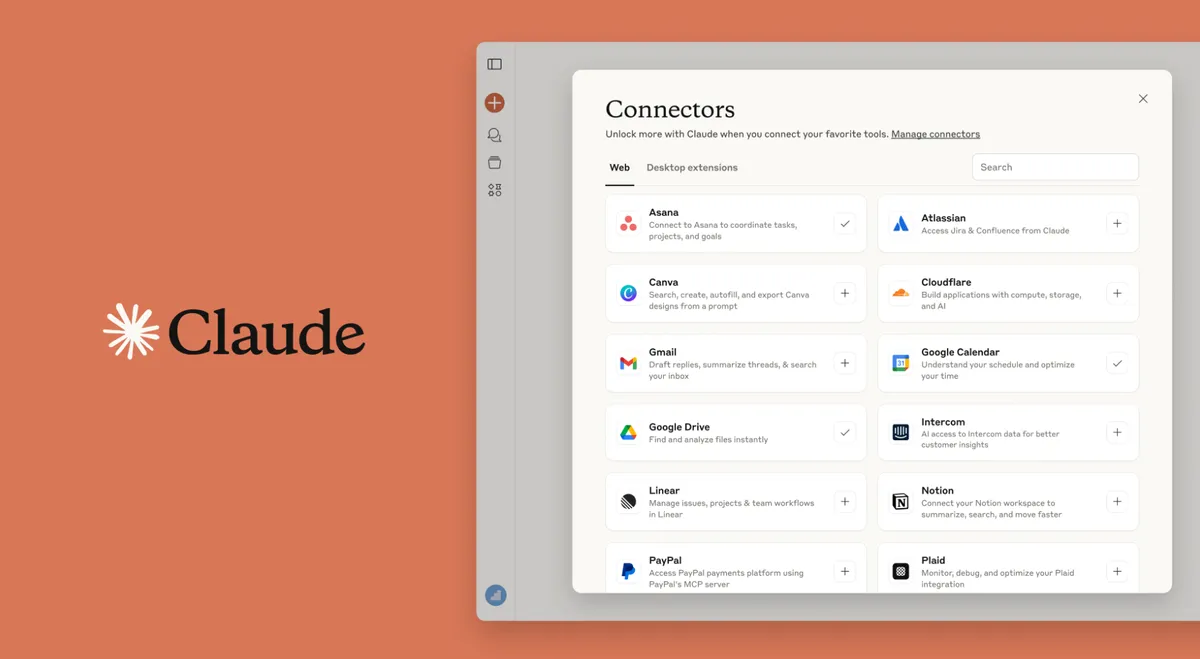
- Open their Settings panel and scroll to Connectors
- Then, click on the option they need, in this case, the Claude Gmail connection
- Follow the authentication process
source: Anthropic
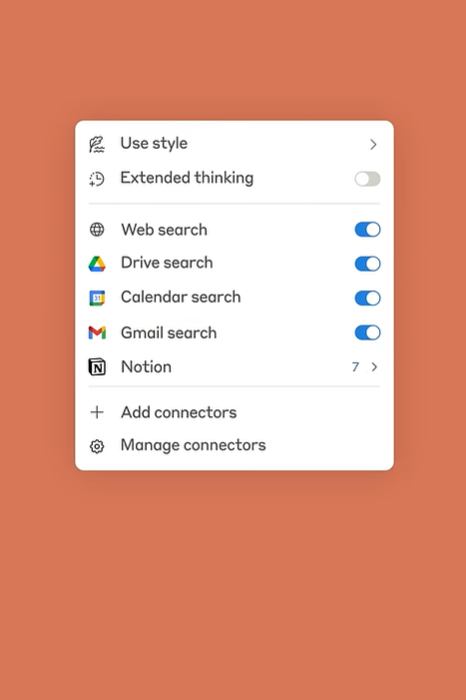
Now that the integration is done, they should find the option to use it directly on their chat window.
source: Anthropic
How much does it cost to connect Claude to Gmail?
It’s worth noting that the built-in Gmail integration isn’t available for free users. Individual accounts can access it from the Pro plan ($17/month), while team accounts already have it included among their many collaborative features, starting at $25/user/month.
Is the data private when you connect Claude to Gmail?
Yes, but there is a caveat. First, the safety concerns:
- Anthropic uses secure infrastructure to store your data and it’s contained to individual chats, so you can remove anything you need
- Claude will only use the access if you prompt it to retrieve Gmail information
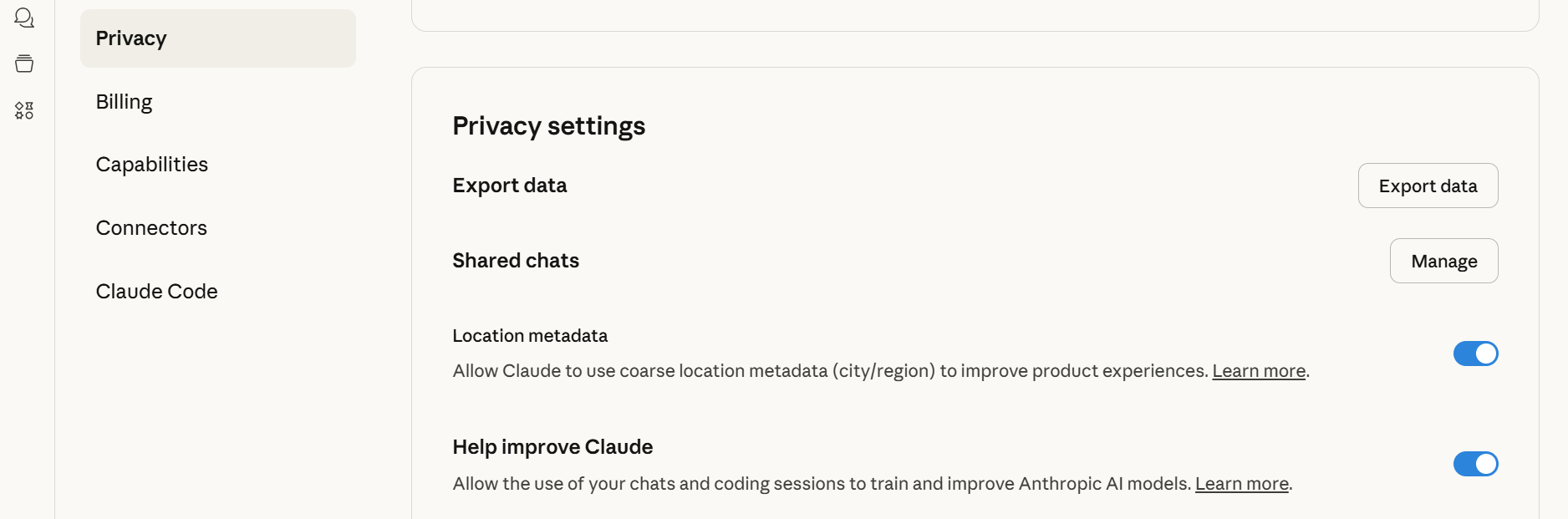
That said, users with individual accounts should pay attention to their privacy needs. By default, Claude uses chat data (your prompts, responses and feedback) on these accounts to train its models, so if you’re dealing with sensitive information, you should open the Privacy settings and detoggle Help Improve Claude.
Can you use Zapier to connect Claude to Gmail?
Yes, Zapier, a third-party resource, can be a great method to connect Claude to Gmail and other key parts of your workflow.
Zapier is an automation tool that allows users to set up triggers and mix the capabilities of multiple software features. Here, for example:
- When you receive a new email, it triggers Claude to write an AI email draft for your reply
- Upon getting messages with an error keyword, Claude will log the conversation and keep documentation
- Sales quote requests are automatically added to a Google Sheet file with the right formatting by Claude that ylou can then use in Salesforce
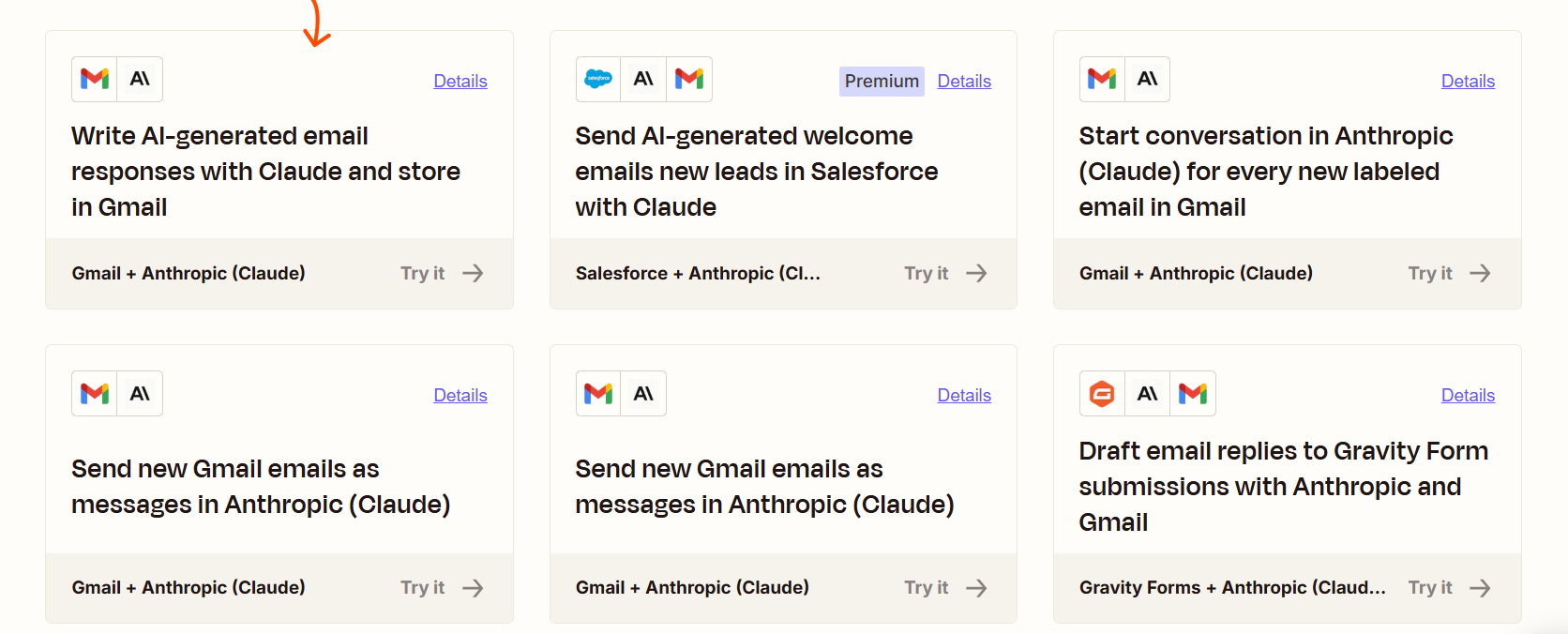
Of course, it depends on your workflow needs and company-specific demands, but the idea is saving time and organizing your resources better instead of having to shift between tabs and software for all tasks.
Are there price limitations to Zapier’s Claude to Gmail connection?
Yes, while there’s a free plan, it doesn’t cover most operations needs, since it only allows for two-step automations and up to 100 tasks a month. If you want to fully take advantage of an automated workflow and connect multiple apps, a paid plan starts at $69/month for teams.
What’s the most complete method to connect Claude to Gmail?
An AI email assistant like HeyHelp. While having access to Gmail on your AI prompts can help guide better answers, it doesn’t fully automate the process. Similarly, third-party connections give you more flexibility, but you still have to include multiple tools at once.
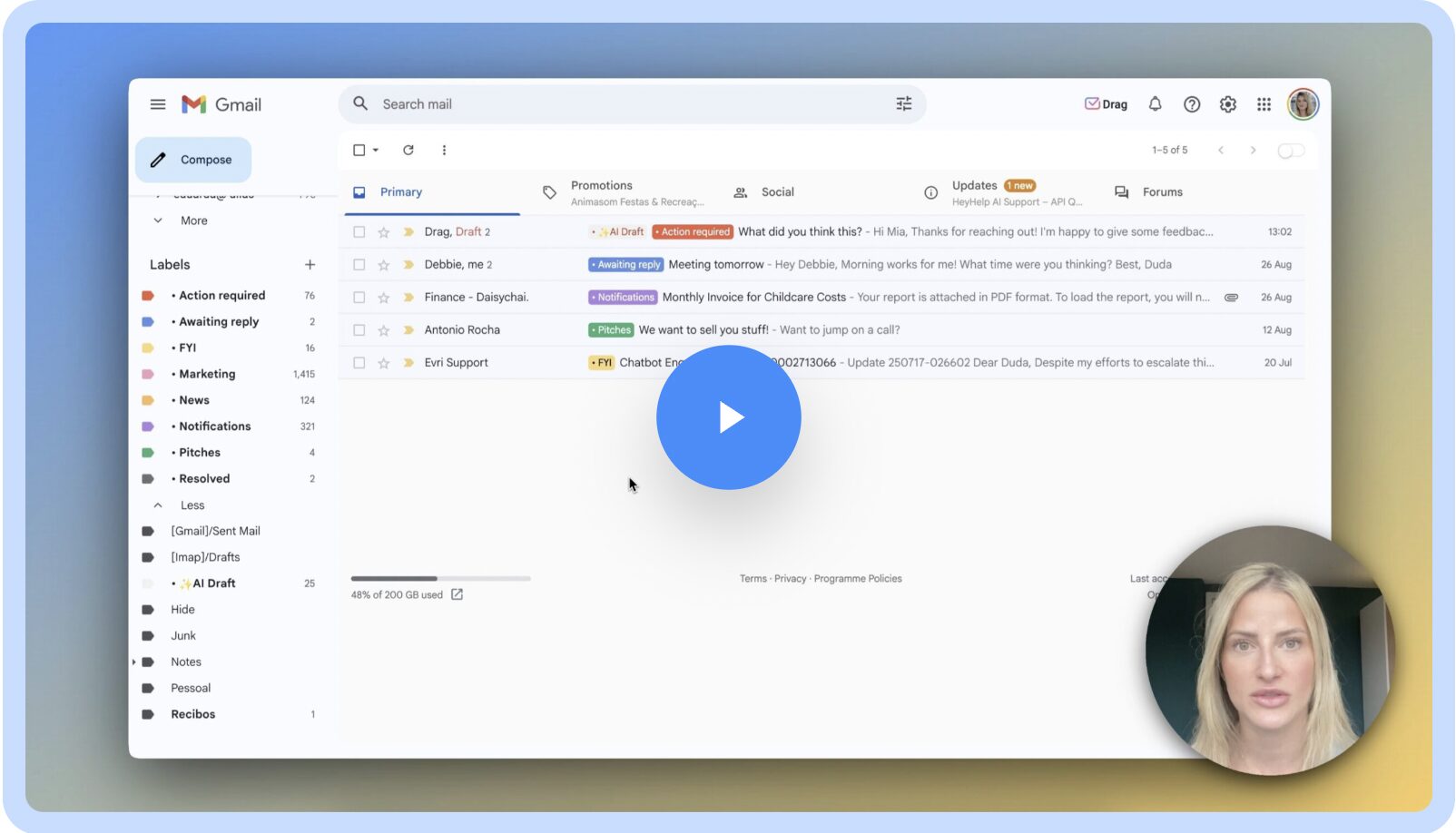
Screenshot
The main difference of an AI email assistant is that it’s built for Gmail and uses Claude API (and other AI models) to customize and optimize the experience for your specific inbox needs, without any friction on your side.
What features are included when you connect Claude to Gmail with HeyHelp?
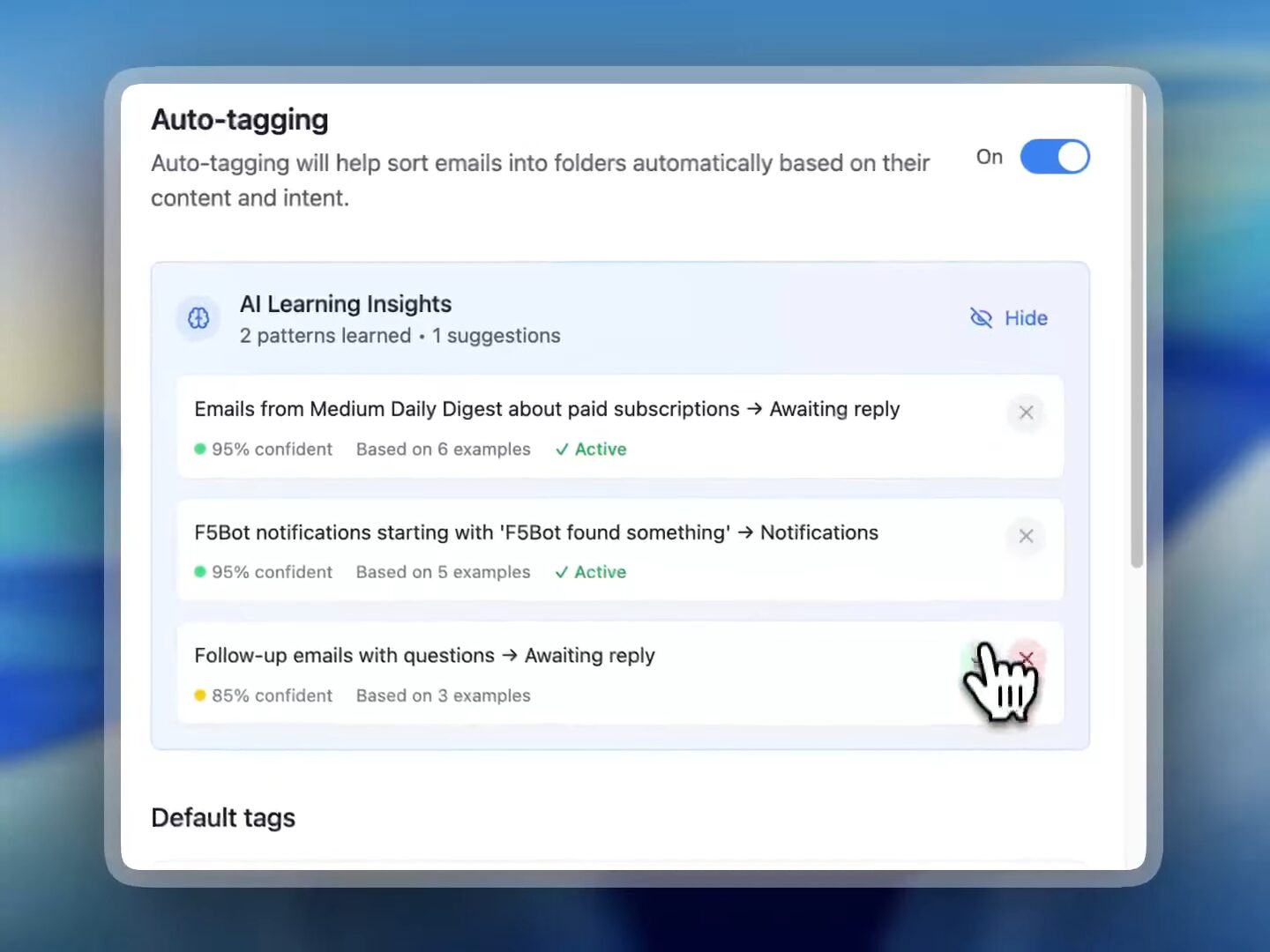
- Auto-tagging: emails are automatically flagged, categorized, labeled, archived and prioritized to help you start with better view of your inbox
- Drafting: HeyHelp uses Claude to offer reply drafts to your emails, so that all you have to do is review and edit them before you hit send
- Follow-ups: your AI email assistant will help you close deals and finish conversations
- Scheduling: use your conversations and integrate with your calendar to set up meetings with better context
💡Using Claude to learn from your inbox
Finally, you can also benefit from Claude AI to have HeyHelp learn from your inbox. By using LLMs and your inbox behavior (writing style, feedback, review changes, workflows), your AI assistant gets smarter email by email, transforming your inbox into a more productive and adaptable workspace.
How can users make the best out of Claude and Gmail?
When you connect Claude to Gmail, your inbox becomes more than a communication resource. Now, it’s productivity tool for all your email-based tasks.
You can use the native integration for quick and basic features and Zapier for flexible multi-tool automation. However, for a complete overhaul of your inbox in a customizable way, an AI email assistant like HeyHelp brings unique advantages.
The key is to match your workflow needs with the right level of automation and control. By implemeting Claude into your Gmail inbox, you’ll turn daily email management into a smarter, faster, and more efficient process powered by AI.
Frequently Asked Questions about Claude and Gmail
How do I connect Claude to Gmail?
To connect Claude to Gmail, open your Claude for Teams account, go to Settings > Connectors > Gmail, and click Enable. Then, authenticate your Google account to allow Claude access. Once authrorized, you’ll be able to ask Claude questions and retrieve Gmail information directly from your chat.
Is it safe to connect Claude to Gmail?
Yes, it’s safe to connect Claude to Gmail. Anthropic uses encrypted systems to protect user data, and Claude only accesses Gmail content when you specifically prompt it to. However, free and individual users should review privacy settings and toggle off “Help Improve Claude” if handling confidential information.
Title
Not to its full extent. The built-in Gmail integration is only available for Claude Pro and Claude for Teams users. Users can also connect Claude to Gmail indirectly through automation platforms like Zapier, though with limited features and task volume caps.
What’s the best way to connect Claude to Gmail for automation?
For full automation, the best way to connect Claude to Gmail is through an AI email assistant like HeyHelp. It uses Claude API to manage your emails, write drafts, and organize your communication schedule automatically. Now, your inbox is an AI-powered workspace that learns your workflow as you go, becoming even more adaptable with usage.